Using Icons
Export and use Figma icons as React-friendly SVG components.
Icons from Figma
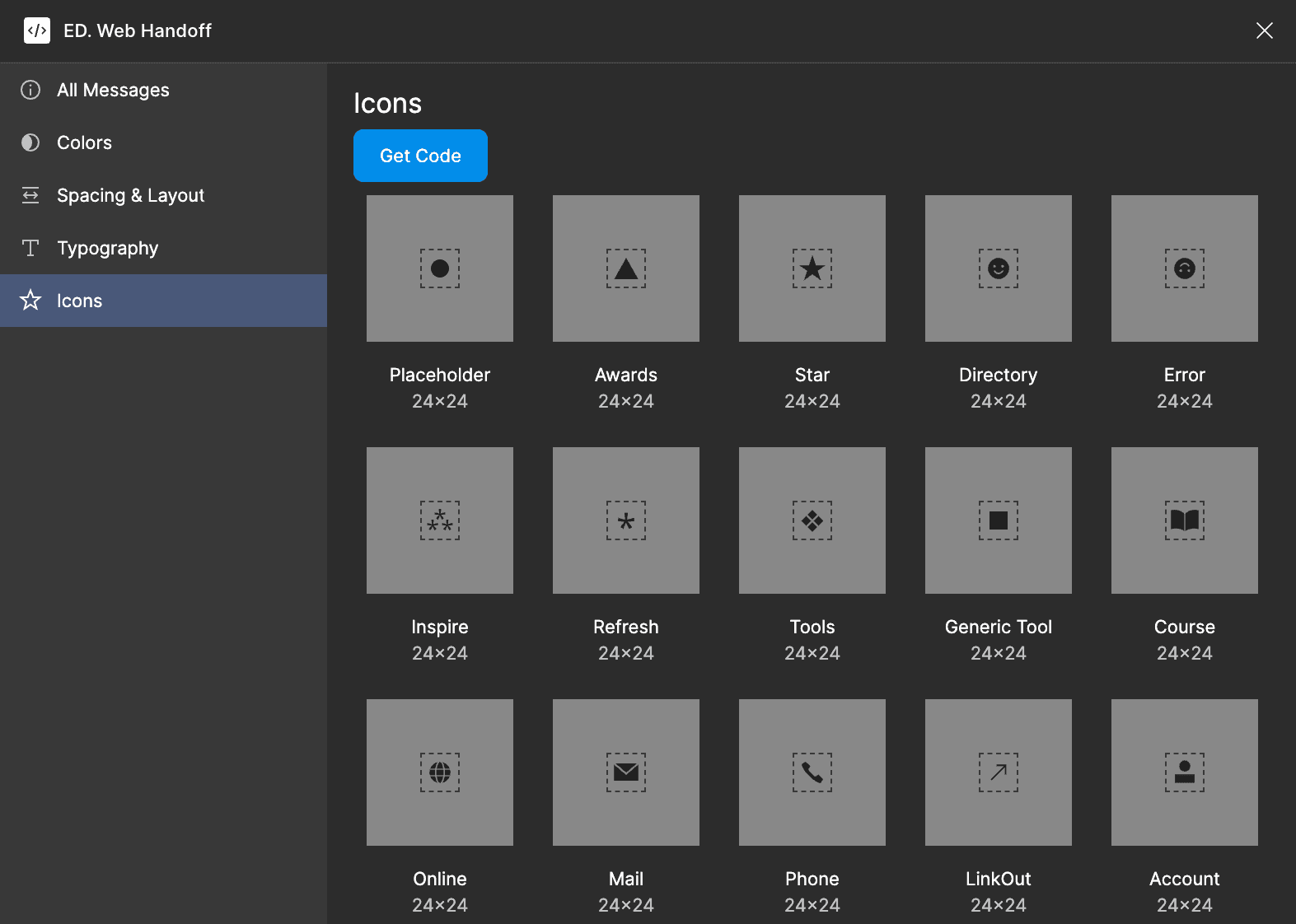
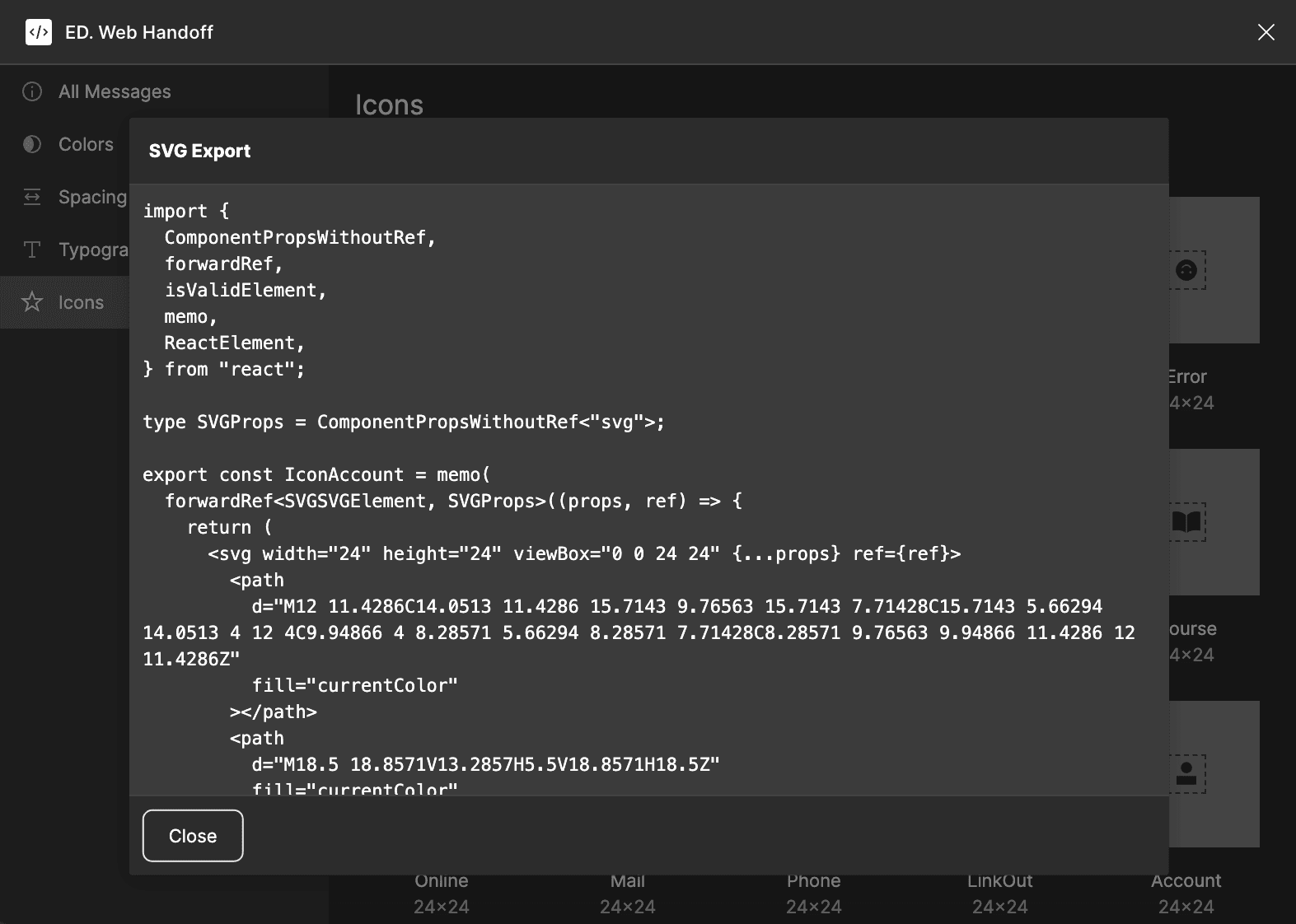
The ED. Web Handoff Figma plugin exports icon code from Figma as a single
React/TypeScript file, along with a helper <Icon /> component.
When an exported SVG only uses one colour, the export replaces fill and
stroke with currentColor. This is ideal for UI glyphs, but it is not a good
fit for multi-colour illustrations.
Artworking
The export requires that icons have been artworked correctly, with these requirements:
- Icons must be defined as individual Figma components.
- Icon component names must be named
Icon/{name}orIcons/{name}, eg.Icon/User. - Icons must live in the
⚛️ UI Kitpage.
Exporting Process
Open the Plugin
In Figma Design Mode, navigate to 'Plugins → From ED. → ED. Web Handoff'.
Copy and Paste
Copy and paste the output into your codebase, into a single file. If the icons are adjusted later, you can come back and repeat the process again, overriding the file.
Development
<Icon />
The generated file contains an Icon component. You can use this component like so:
import { Icon, IconClose } from '~/components/atoms/icons'

// Icon colour will inherit text color
<Icon name="plus" />

// Override icon colour
<Icon name="delete" className="text-red" />

// Render an icon directly
<IconClose />
Note that in the example above, if icon is undefined, the <Icon /> component will render null.
IconName and IconRef
The IconName and IconRef types can be used for type-safety when creating components that accept icons as props.
Here's an example of what the Figma plugin generates:
// The `IconName` type is a union of the icon names, camel-cased.
export type IconName =
  | "close"
  | "dot"
  | "down"
  | "menu"
  | "plus"
  | "right"
  | "circleClose"
  | "circleMinus"
  | "circlePlus"

// The `IconRef` type accepts either an icon name, or a JSX element like <svg />
export type IconRef = IconName | ReactElement
You can use the IconName like so:
import { type IconName } from '~/components/atoms/icons'

type Props = {
  icon?: IconName
  label: string
}

export function Button(props: Props) {
  return <button>
    <Icon name={props.icon} />
    {props.label}
  </button>
}

// Usage with an icon:
<Button icon="plus" label="Add" />

// Without an icon:
<Button label="Add" />

// ❌ TypeScript error:
<Button icon="jshfkajsdhfahsdf" label="Add" />
Alternatively, if your component should also accept icons from other component libraries, or inline-svg, you can use IconRef instead.
import { type IconRef } from '~/components/atoms/icons'

type Props = {
  icon?: IconRef
  label: string
}

export function Button(props: Props) {
  return <button>
    <Icon name={props.icon} />
    {props.label}
  </button>
}

// Usage with an icon name:
<Button icon="plus" label="Add" />

// Usage with an icon component
<Button icon={<IconPlus />} label="Add" />

// Usage with an arbitrary SVG
<Button icon={<svg />} label="Add" />
You can also create your own subset of icon names, based on some prefix:
export type CircleIcon = Extract<IconName, `circle${string}`>
// ^ type CircleIcon = "circleClose" | "circleMinus" | "circlePlus"
const ICONS
Finally, you can also access the full set of icons using the ICONS variable that is exported.
import { ICONS } from '~/components/atoms/icons'

<select>
  {Object.keys(ICONS).map(name => (
    <option key={name} value={name}>{name}</option>
  ))}
</select>
Icon Styles
For one-off styles, add className to the icon when it is used.
<Icon name="delete" className="size-6 text-red" />You can also apply global styling to all icons, since an .icon class name is automatically added to every icon rendered with the <Icon /> component:
@layer components {
  .icon {
    @apply block flex-none aspect-square size-[1.5em];
  }
}
The example above ensures that icons don't grow/shrink when used in a flex container, and scale up and down automatically based on font size (which you may or may not want).